How to use Oafer
Everything Oafer does for you, in the order you are likely to meet it. Each section is what the thing is, the few steps to use it, and one thing worth knowing that is not obvious. If you have five minutes, read the first section and start — the rest will keep.
Your first five minutes
Oafer is a study companion you keep. You give it a subject, it gives you a guide for that subject, and the guide remembers what you worked on the last time. Nothing here needs to be downloaded or set up — it runs in a browser tab, on a laptop, a school Chromebook or a phone.

- Make an account at app.oafer.ai. It is free to start, and you need to be 13 or older.
- A short tour runs the first time. It explains how Oafer is organised, then asks you to name your first territory — one subject, named after the class: Biology, Calculus, French.
- Add that subject's textbook as a PDF if you have one to hand. This is optional, and the tour says so; you can add it later from the territory's overview page.
- Open the territory and ask a real question — something you are actually stuck on this week, not a test question for the app.
Tip Start with the class you are most behind in, not the one you like most. Oafer gets more useful the more it has seen you get wrong, and that is the subject where there is most to see.
The Atlas, and your territories
The Atlas is your home screen: a night sky with one star for each subject. A subject is called a territory, and each one keeps its own chat history, its own textbooks, its own memory and its own record. Biology never answers out of your chemistry book. A single conversation inside a territory is an expedition, and they stack up in a log down the side so you can reopen one.
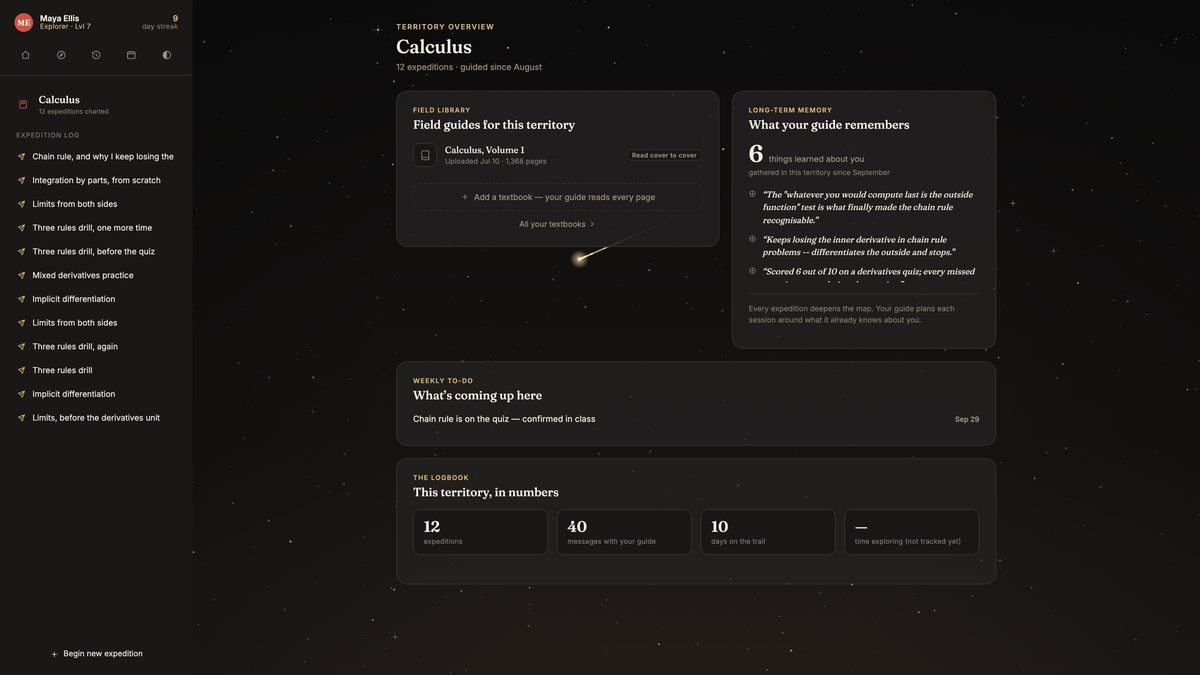
- Click a star to open that territory. The page behind it shows the territory's books, what your guide remembers about the subject, and what is coming up in it.
- Chart a new territory from the Atlas to add a subject. One per class is the shape that works.
- Inside a territory, Begin new expedition starts a clean conversation; the expedition log beside it reopens an old one.
- Right-click a territory on the Atlas to rename or delete it.
Tip An account holds ten territories. Questions that do not belong to any one class — planning your week, what is due across everything — go to Talk to Oafer in the navigation instead, which can see all your subjects at once but has no textbook of its own.
Chatting with your guide
Your guide teaches with questions. Ask it something and it will not simply hand over the finished answer — it asks the next thing that gets you there, then explains properly once you have done some of the work. That is also a firm limit: it will not write your essay, sit your test, or hand you homework answers, however the request is phrased. Replies appear as they are written rather than all at once, and anything drawn from your textbook names the chapter it came from.
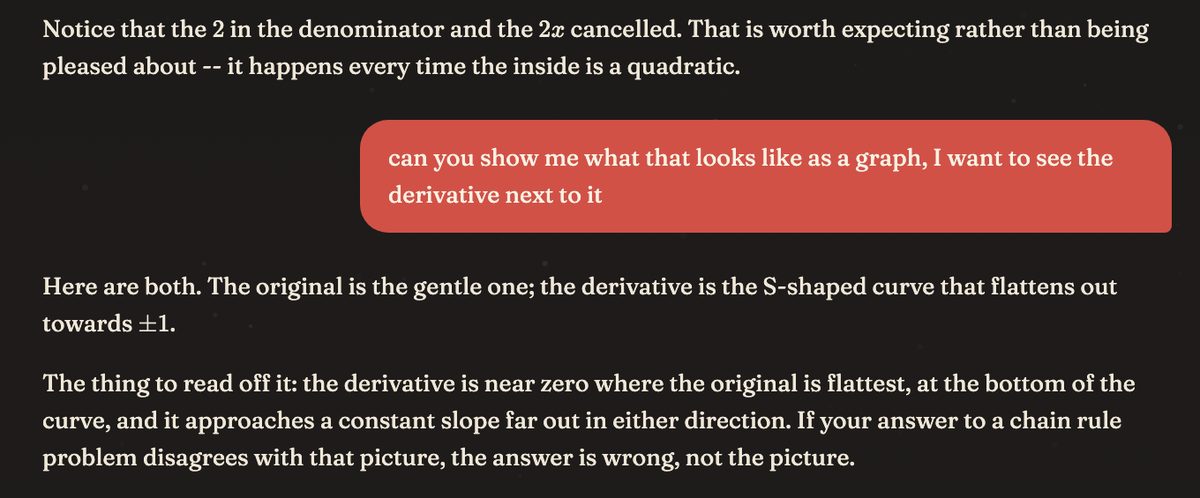
- Type in the box at the bottom of an expedition and send.
- Ask for the thing you want by name: an explanation, a worked example, a quiz on chapter 3, a practice test, notes, a graph.
- Push back. “I still do not get the second step” is a real instruction and a better one than starting again.
- Ask it to look something up on the web when the answer depends on something current rather than on your book.
Tip A card your guide makes — a quiz, a test, a set of notes — is not part of the conversation text afterwards. If you want it to use what is inside one, say which card you mean (“the quiz you just made”) and it will look it up rather than guess.
Your textbooks
Upload your class's textbook as a PDF and Oafer reads it end to end, not as a skim. After that, explanations line up with the chapters, terminology and examples your teacher is actually using, and answers cite the section they came from. Quizzes and flashcards built from a book stay inside the part of it you asked about.
- Open Settings → Textbooks, or the Field library on a territory's own page.
- Choose Add a textbook: pick the territory it belongs to, give it a title, attach the PDF.
- Watch the row's tag. It says Queued to read, then Still reading with the page it has reached, then Read cover to cover. A book it genuinely could not open says Couldn't be read rather than pretending.
- Ask a question about a chapter, and check that the answer's citation points where you expect.
Tip A book has to be filed under a territory for your guide to have anywhere to use it. The Textbooks page shows every book across every subject; a territory's Field library shows only its own.
Notes
Ask for notes and you get a real document, saved and yours to edit — headings, explanations, worked examples, definitions, and citations back to your own textbook where it covers the material. You can also ask for notes built from work you have already done: make notes from the quiz I just took.
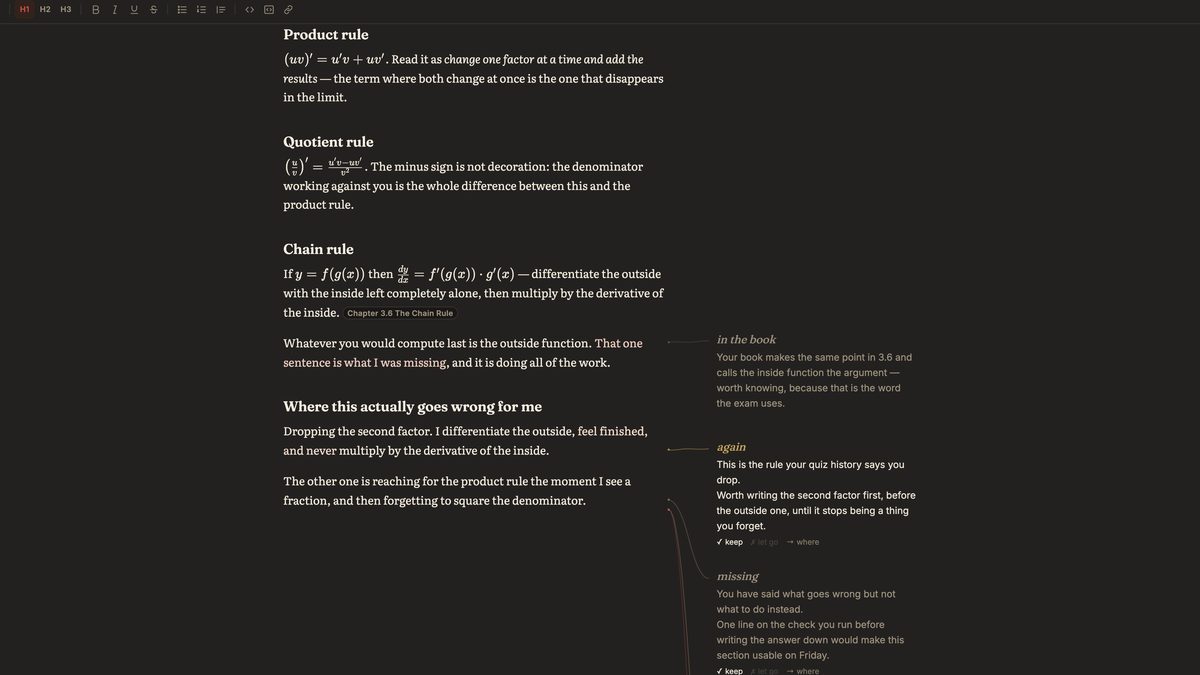
Open a set full screen and it becomes an editor: rewrite a paragraph, add your own, keep what was drafted for you. Words you have just typed carry a faint tint that fades as they age, so you can see your own hand on the page.
While you write, your guide reads along in the margin — and most of the time it says nothing, deliberately. It speaks when a line contradicts what you have been studying, when there is a gap where something should be, when a passage in your textbook backs up what you wrote, or when you have written the exact thing you keep missing on quizzes. Write an actual question in your notes and it answers that one. Each remark sits level with the line it is about, joined to it by a thin thread; older ones go quiet and stay beside their own paragraphs, so scrolling back at the end gives you the whole session's commentary in order.

- Ask for them: write me notes on the chain rule, or notes from my last test.
- Open the set full screen and type. The toolbar handles headings, emphasis, lists, links and maths.
- Answer the margin. Each remark can be kept, or told it was wrong — and you can ask any one of them for more.
- Turn Solo mode on when you want to write undisturbed. Nothing is read while it is on.
- Finish with Print / Save as PDF, or download the set as Markdown; or use Quiz me on these notes — there are also test and flashcard versions, and a what's missing version of each that asks about what you left out.
Tip On a phone there is no margin to write in, so a remark opens directly under the paragraph it means, and it never moves the line you are typing on. Tap the small ember at the end of a line to read what was said there earlier.
Quizzes, tests and flashcards
Three different things, on purpose. A quiz gives you one question at a time and tells you straight away how you did. A test is a timed paper: every question up front, free to jump between them, nothing graded until you submit. A flashcard deck is ten cards you flip and mark, going round again on just the ones you did not know.

- Ask for one: quiz me on the chain rule, give me a practice test on chapter 4, make me flashcards on cell respiration.
- On a quiz, answer and press Check answer. Every kind of question is marked for you — multiple choice, true/false, numbers and expressions, and written answers too, which are judged on meaning rather than wording.
- Read the why under a wrong answer before moving on. That is the part that is worth your time.
- On a test, submit when you are done and read the pacing as well as the score: how long you spent per question is a different lesson from which ones you missed.
- After a test, read the readiness check. It sorts what it found into gaps that were already on your record and that you missed again, things you had never missed before, and concepts you used to struggle with and got right this time.
Tip You will not lose a mark on formatting: 5, x = 5 and x=5 all count as the same answer. Tests and flashcard decks also print — a test with ruled answer lines and the key on its own page, flashcards as cut-out, double-sided cards.
Graphs
Ask your guide to plot something and it draws it — up to five curves on shared axes — and the graph is saved into the conversation like anything else it makes. The drawing is not a picture: you can open the equations behind it and change them.
- Ask: graph these two, plot the derivative next to it, draw me what that looks like.
- Open the expression list on the graph to read the equations it used.
- Edit one, add your own alongside to compare, or hide a line to see past it. What you change is kept for next time.
- Press Reset to put the original drawing back.
Tip Editing a graph needs a mouse or a trackpad at the moment. On a phone you can still see and reset work you did at a desk, but not change it there.
The Calendar, and your study plan
The Calendar — the almanac — is a month of everything you have planned. Two kinds of thing live on it, and the difference matters: a reminder notifies you at its time, and a note never does, it is just something written down on a day. Your guide can create either one for you, and when you talk about your week it can see what is already on the calendar, so it can point out a test with nothing booked before it.

- Say it in chat: remind me Thursday at seven to review the Krebs cycle, or my bio test is on the 14th.
- Or open the Calendar, click a day, and use Add to this day.
- Read The road ahead for what is next, and From your guide for nudges: a date you noted coming up, a subject you have not opened in a while, or a subject you have kept at all week, with a button to schedule the next session.
- In Settings → Google Calendar, press Connect if you want your study plan in Google too. Oafer makes a calendar of its own there, called Oafer Study Plan, and writes your study sessions and test dates into it. It writes only; it never reads any of your calendars, including that one. Your own calendars stay invisible to it.

Tip Turn on browser notifications under Settings → Preferences and a reminder reaches you even when the Oafer tab is closed. Repeating reminders can be daily, weekly, monthly or every weekday; anything more particular than that is not supported yet, so set those as separate reminders.
What Oafer remembers
Most study tools forget you the moment you close the tab. Oafer keeps what you tell it — what you are working on, what is coming up, where you keep slipping — and carries it from one session to the next. What it learns inside a territory stays in that territory. All of it is private to your account: it is not sold, and it is not shared with other students.
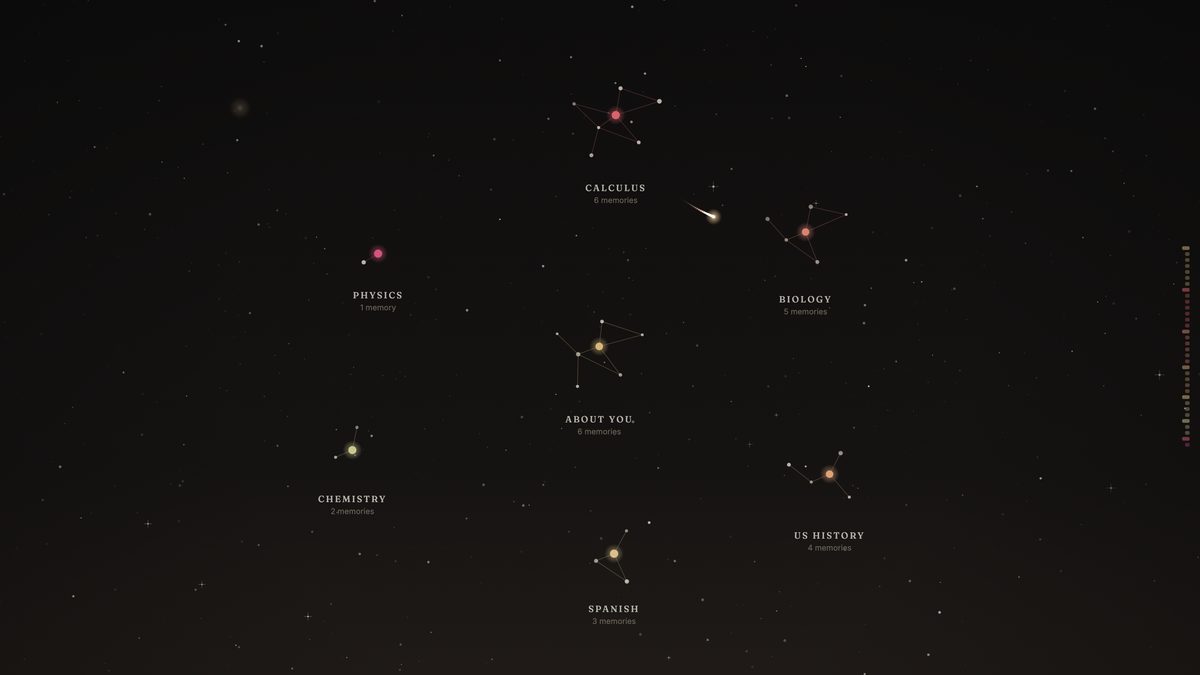
- Open Talk to Oafer from the navigation. The page is a sky of what it remembers, clustered by territory, with an About you cluster for the things that are not about one subject.
- Watch for the Added to memory line that appears under a reply when something new has been kept.
- Tell it things on purpose. “I have practice until six on Tuesdays” and “I always mix up mitosis and meiosis” are both worth saying once.
Tip A long-term memory panel also sits on each territory's overview page and on your learning history, so you can see what a single subject's guide is working from without leaving it.
Your learning history
The record of what you have actually done, rather than how it felt. Your streak, your level, days on the trail, quizzes and tests taken, the share of answers you have got right, and the messages you have sent. Below that: the last twelve weeks of activity, how each territory is going, and how your answers are landing over time.
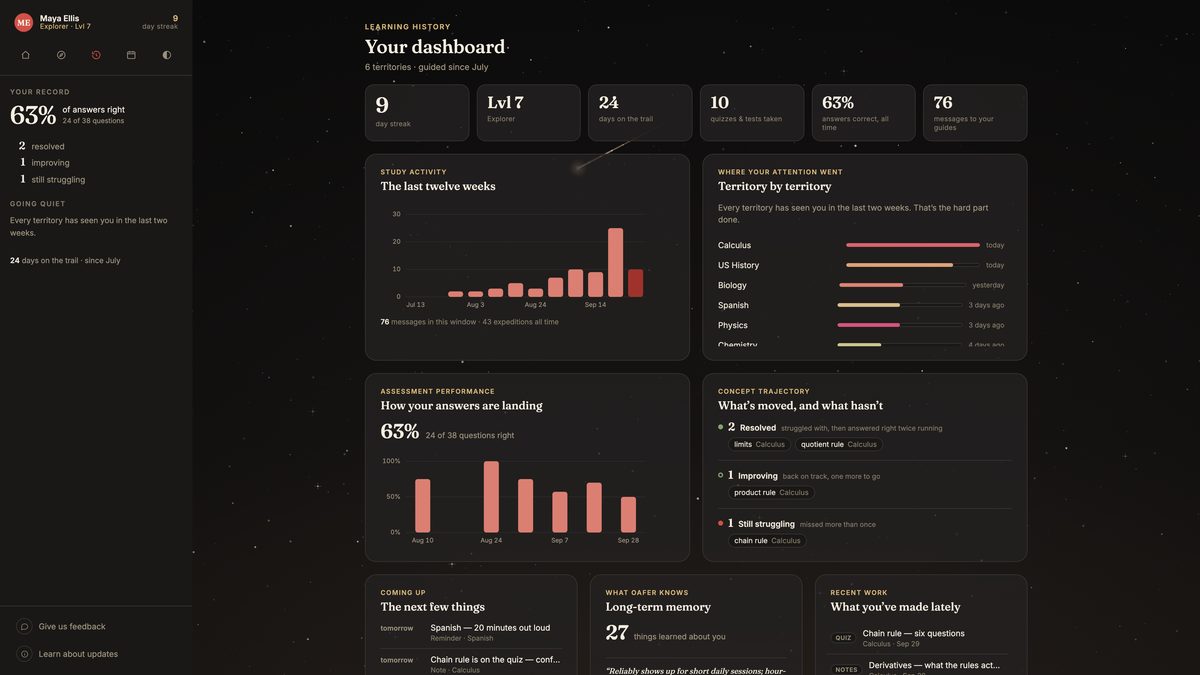
- Open Learning history from the navigation.
- Read the top row for the shape of the month.
- Go to What's moved, and what hasn't. It sorts the concepts you have been tested on into Resolved, Improving and Still struggling.
- Study from Still struggling first, and enjoy Resolved — those are things you genuinely fixed.
Tip A Going quiet panel flags a territory you have not touched in a while. It is the most useful thing on the page in the week before exams, when it is easy to revise only the subject you already like.
Streaks and levels
Your streak is the run of days in a row on which you studied at least once, counted in your own timezone. Your level comes from the total number of separate days you have shown up, and carries a rank title that goes from Wanderer up to Master Cartographer at level twelve. Both sit in the profile chip, on every page.
- Study once on a day — one session is enough — and the day counts.
- Level two arrives after a single active day. After that the gaps widen: three days, six, ten, and so on up to sixty-six.
- Check the pair in your profile chip, or in the top row of your learning history.
Tip A streak is not broken the instant midnight passes. If yesterday counted and today has not yet, you still have the rest of today to keep it — and because it counts days rather than hours, ten honest minutes keeps it as well as three hours does.
Settings
Everything about your account in one page, reachable from your profile chip. Your name and email; the look of the app; how your sessions are guided; your books; your Google Calendar connection; the changelog; and what happens to your data.
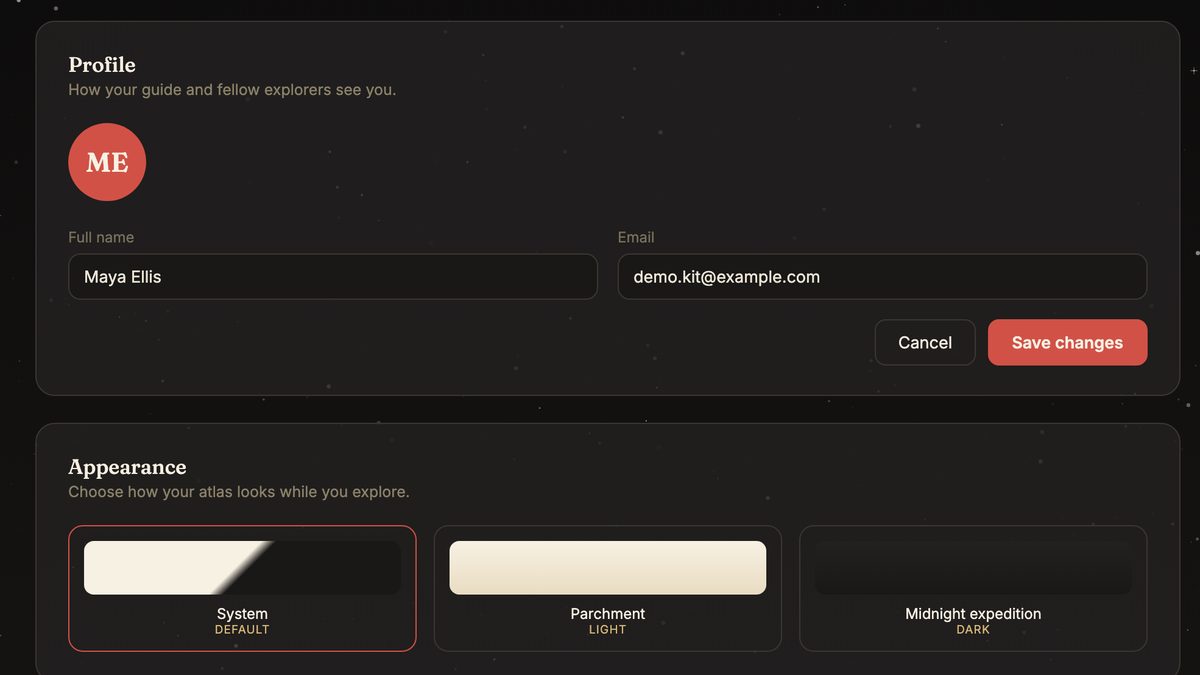
- Appearance: choose System, Parchment or Midnight expedition. System follows your device.
- Preferences: let Oafer detect your timezone — which is what makes reminder times mean what you think they mean — or set it yourself, and switch on browser notifications.
- Textbooks opens every book you have uploaded, across all your territories.
- Changelog lists what has changed recently, and why. Privacy & your data links to the full policy.
Tip Your theme is saved to your account, not to the browser, so it follows you to the other computers you use. One setting that stays per-device on purpose is Solo mode in notes — you may well want it on for the laptop you take to lectures and off for the one at home.
Telling us something is wrong
Oafer is small and changes most weeks, and a bug report from a student using it on a Tuesday night is the most useful thing we get.
- Use Give us feedback at the foot of the sidebar on the Atlas, the Calendar, your learning history or Settings.
- Say what happened, and tag it as a bug, a suggestion or something else.
- For anything that needs a reply, write to [email protected].
Tip If an explanation looked wrong, say which territory and roughly when. That is usually enough to find the exact conversation.
Questions students ask
Will it just do my homework?
No, and not because of a filter it might slip past. It is built to ask you the next question instead, and it will not write your essay, sit your test or hand over homework answers however the request is worded.
Do I need a textbook to use it?
No. A textbook makes answers match your class exactly, which is worth doing, but everything else — chat, quizzes, tests, flashcards, notes, graphs, the calendar — works without one.
Does it work on a phone?
Yes, in the browser; there is nothing to install. The notes margin becomes replies between the lines, and editing a graph's equations is the one thing that currently needs a mouse or trackpad.
Are written answers really marked?
Yes. An explanation, a definition or a “why” answer is compared against the stored answer for meaning rather than wording, and comes back with a note on what was missed.
Can Oafer read my Google Calendar?
No. Connecting it is one direction only: Oafer creates a calendar called Oafer Study Plan in your Google account and writes your study sessions and test dates into it. It never reads your calendars, and the ones you already had stay invisible to it.
What does it cost, and how old do I have to be?
Free to start, with limits; paid plans are coming. You need to be 13 or older. See the Terms of Service and the Privacy Policy.
That is the whole of it. The rest is a subject you are behind in and ten minutes.
Try OaferFree to start · No download · 13+